 Furrany Studio System
3 seconds ago
Furrany Studio System
3 seconds ago
Furrany Studio System
3 seconds ago
Furrany Studio System
3 seconds ago

Microsoft Azure PlayFab x Unreal Engine
What is PlayFab?
Microsoft Azure PlayFab is a backend platform as a service (GaaS)* for video games. It provides a suite of cloud tools for player management, server hosting, monetization, data analysis and much more. Its aim is to help developers easily manage a game's online functionality without having to create a complex backend infrastructure.
*GaaS : games as a service represents providing video games or game content on a continuing revenue model, similar to software as a service.
Why use PlayFab?
PlayFab enables game developers to:
It integrates well with engines like Unity and Unreal Engine, and saves time by avoiding custom backend development.
PlayFab pricing
PlayFab operates with a usage-based pricing model:
What does it actually do?
PlayFab is useful for any type of game requiring online functionality:
This is a turnkey solution that simplifies backend management for developers wishing to focus on gameplay and user experience.

Explanation of Multiplayer, LiveOps and Data & Analytics features
Multiplayer : Multiplayer management
PlayFab provides a set of tools for creating high-performance, scalable multiplayer experiences.
Usage example: A competitive FPS that uses automatic matchmaking and dedicated servers to host games.
LiveOps: Dynamic Content Management
PlayFab LiveOps lets you adapt the game in real time to maximize engagement and monetization.
Example of use: a Battle Royale launching a special Halloween event with exclusive skins and a temporary game mode without client updates.
Data & Analytics: Player tracking and analysis
PlayFab enables you to collect and analyze data in real time to optimize the user experience.
Example of use: A mobile game adjusts the difficulty of levels according to player dropout rates to improve retention.
In a nutshell: Why use these features?
With PlayFab, developers can therefore focus on gameplay while benefiting from a robust, scalable cloud infrastructure.
How to implement it on Unreal Engine?
An installation of the PlayFab Unreal plugin. You can install the Unreal plugin from the Unreal Engine marketplace.
If you're installing it manually, simply create a “Plugins” folder at the base of your project if it doesn't exist, and put your file in it.
If you're a C++ , I strongly advise you to follow the official documentation.
Create an Unreal project
In Unreal Engine, create a new Unreal Project. For detailed instructions, follow the Create a New Project guide.
Enable the PlayFab Plugin in your Unreal project
To enable the PlayFab Plugin:
Add PlayFab as a Module dependency in ONLY C++
PrivateDependencyModuleNames.AddRange(new string[] { "PlayFab", "PlayFabCpp", "PlayFabCommon" });
How to setup Playfab on Unreal Engine ?
To prepare your project with Playfab, you'll need to create a project on Playfab, the Title ID of which can be found on your dashboard.
To find your secret key, just go to your project dashboard and navigate to the “Secret Keys” section.
If you don't have a secret key, create one!


Login & Register Request
Setting up a connection and registration system is actually quite easy.
What are the steps involved?
In truth, there's not much to do. Once you've tested the connection with your database, you can use these specific nodes to make an API request.
You can use "Login With Email Address" for login and "Register Play Fab User" for register.
Please find enclosed two copies of screenshots.
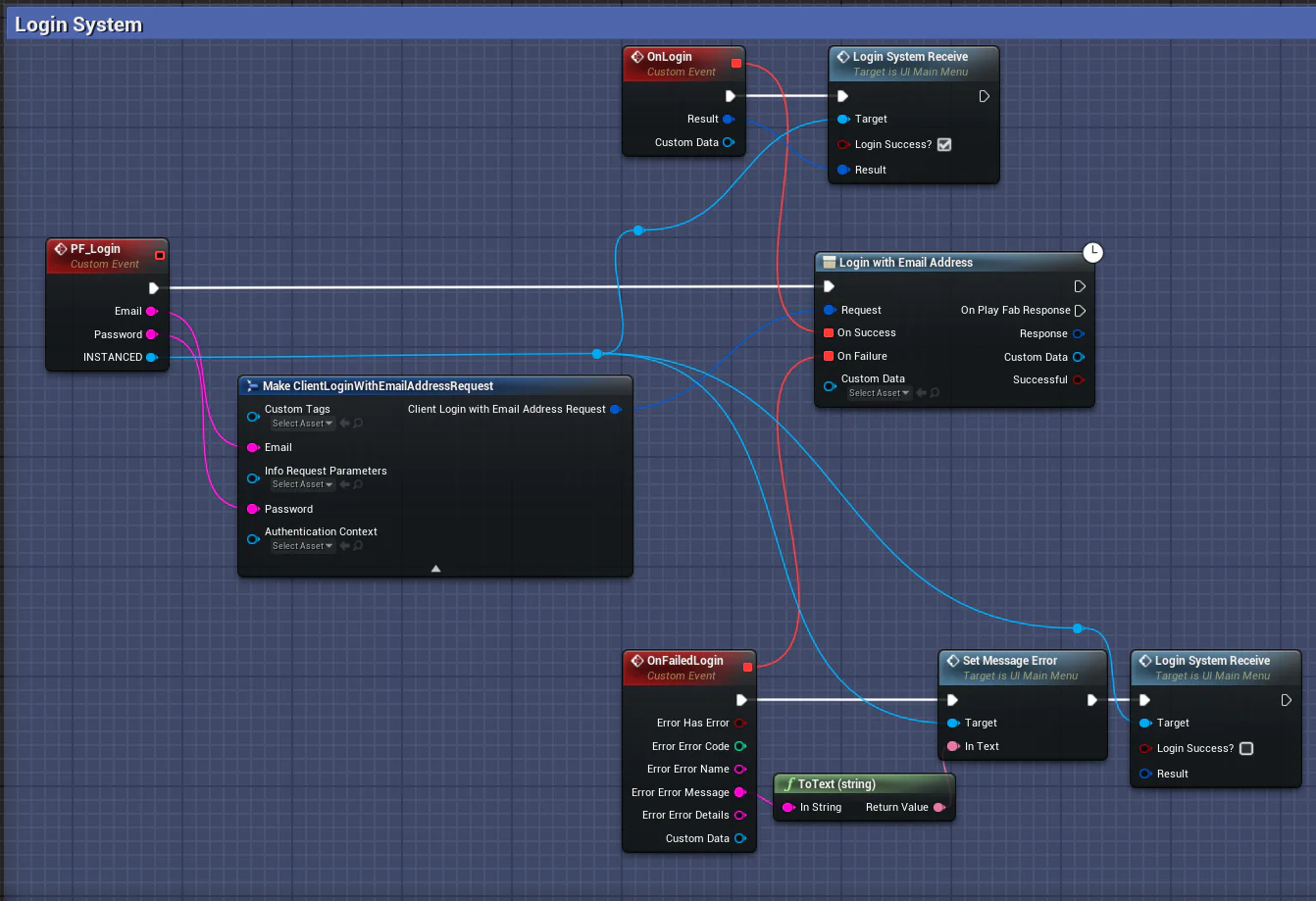
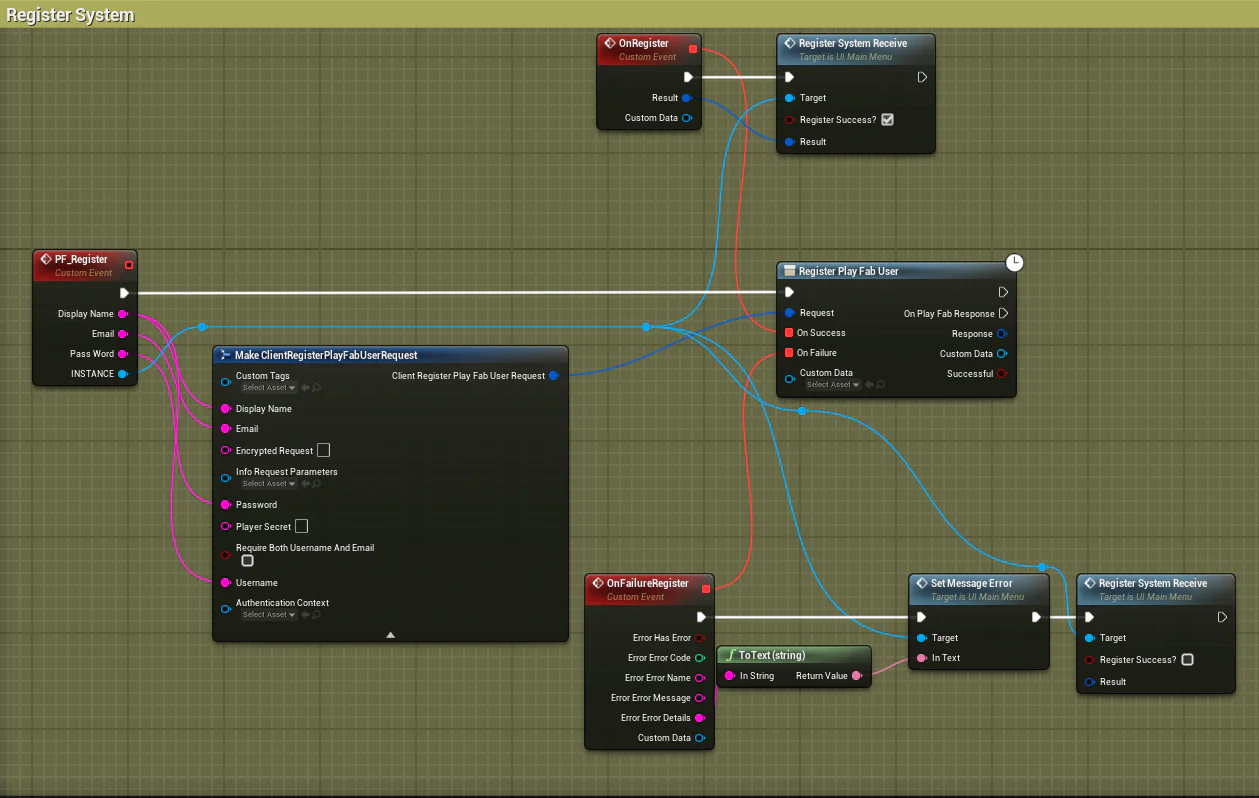

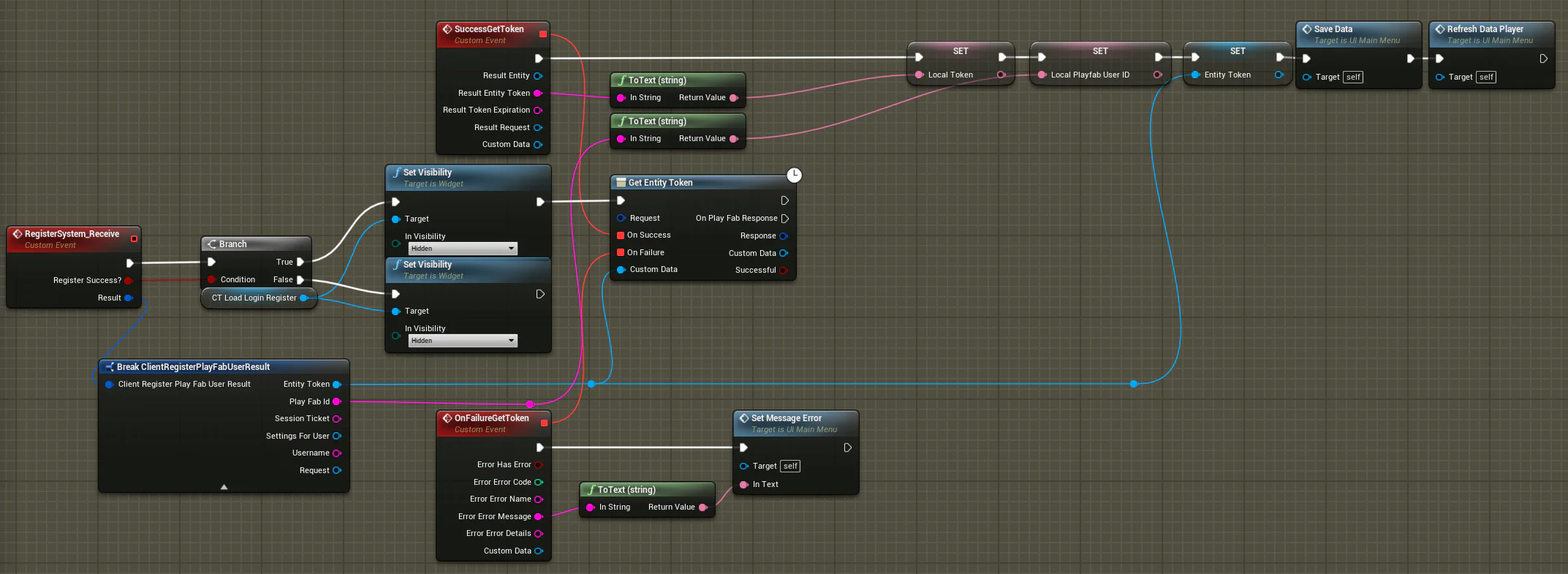
The continuation of my code checks for errors.
If there are no anomalies, I can extract the “Entity Token” to identify the player and present his information.
Retrieve information from the player's Statistics & Inventory
Extracting a player's inventory may seem straightforward, but without a thorough documentation search, it's actually difficult to locate.
However, we have a solution for you.
Attached is a link to the documentation that explains the procedure to follow.
First, we'll illustrate our point by taking the levels saved in the database as an example.
To begin, go to the “Automation” section, then “Rules”, and create a rule when a player is created in the database.
Add an action by selecting “Increment Player Statistic”.
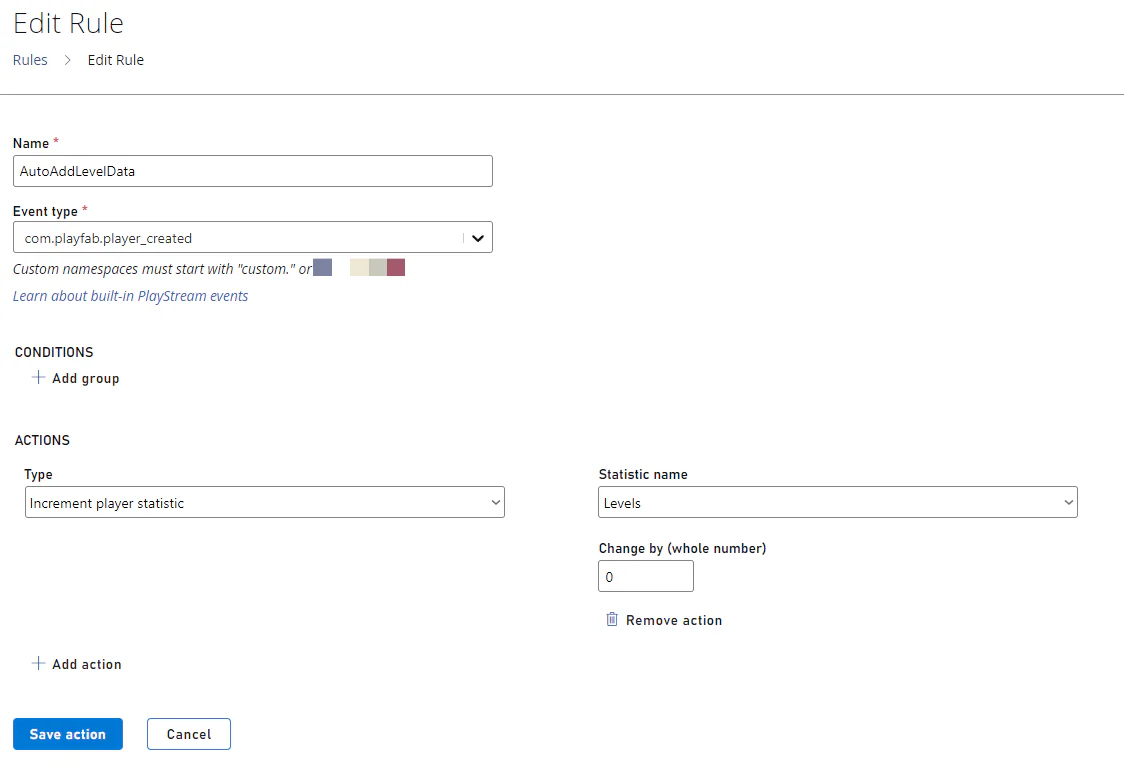
What are the objectives behind this action?
We're going to automate the account creation process for players, which will trigger several automatic tasks, such as configuring their inventory and entering their personal information.
As you can see, the account does have these statistics implemented
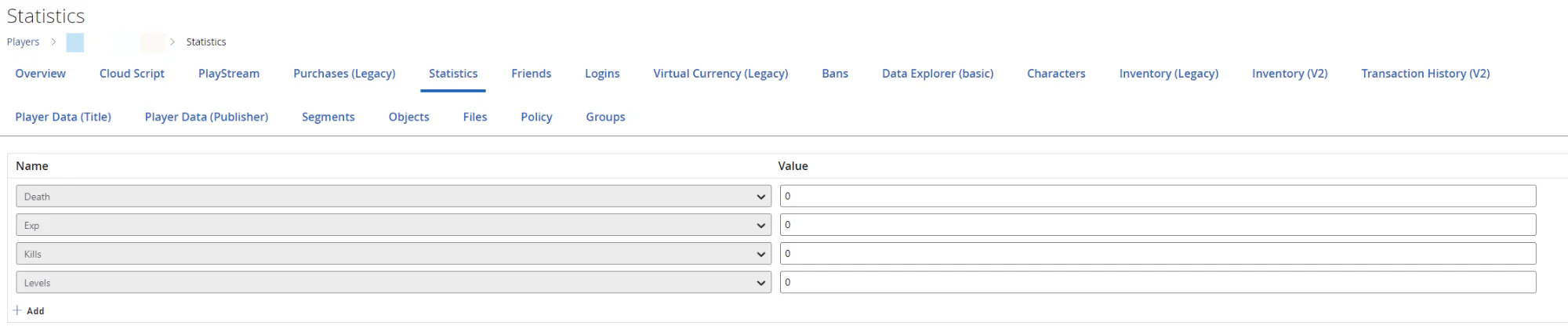
To obtain this information in Blueprint, simply use the “Get Player Statistics” node, which is a very simple process.
Player Data Management - Get Player Statistics
Player Data Management - Update Player Statistics
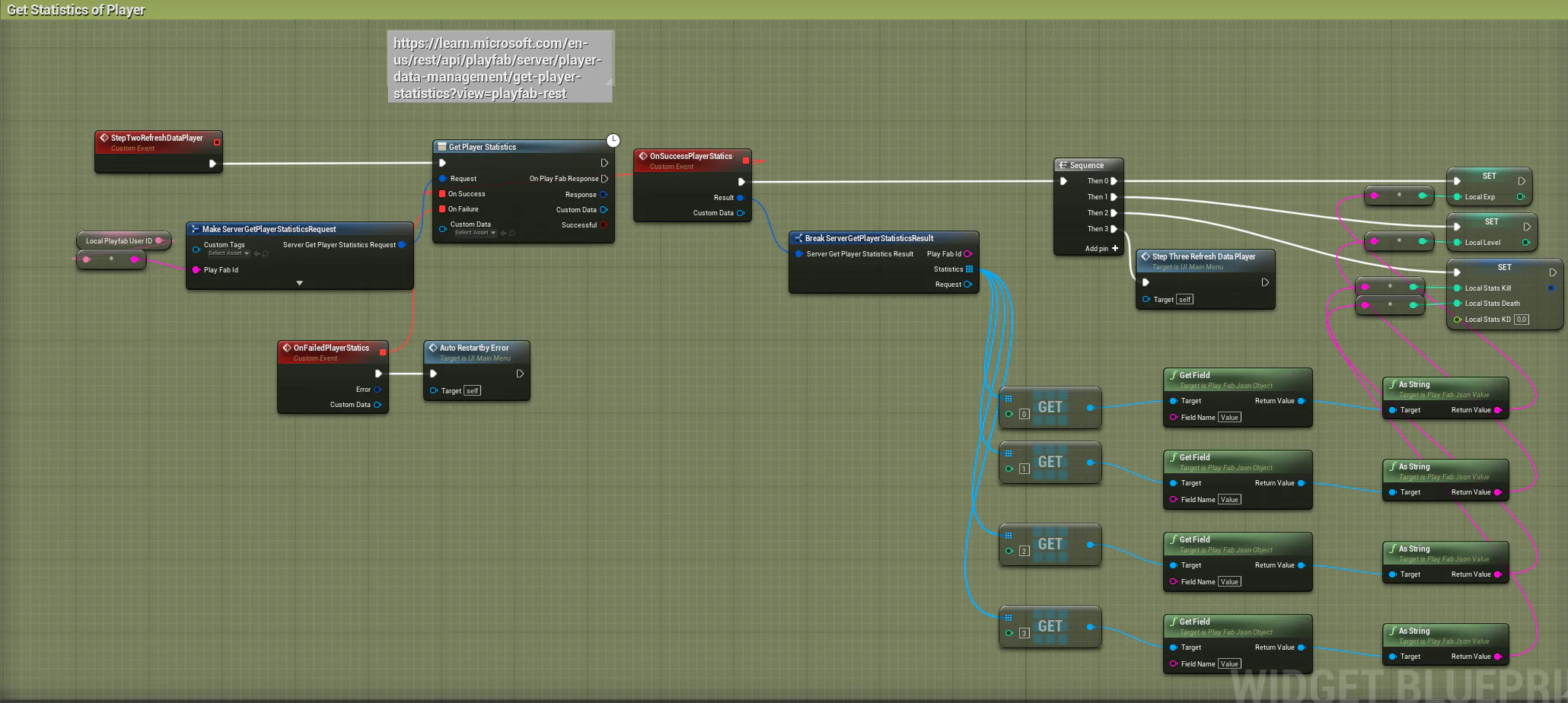
ECONOMY GAME
Let's turn now to the question of currency in the game, which leads us to examine the game's economy.
For my part, in this medieval game, I designed currency units from iron and gold coins to establish my economic system.
In my game, iron is a currency that can be acquired free of charge through battles, quests or leveling up.
Gold is the currency of the game, enabling the acquisition of mystical or paid items.
It can be obtained through special or main quests, while also offering the possibility of earning gold as you progress through your account's level tiers.
What's more, it can be purchased with real money.
In my experiment, I used Playfab's old economic approach, which is still operational.
So I'll have a chance to show you this version.

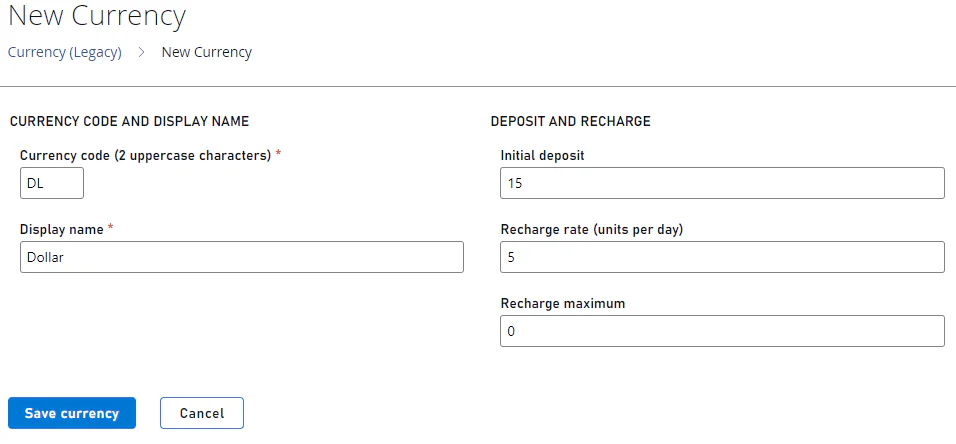
How do I create money?
Click on the “New currency” button to add your funds.
Initial deposit : Current money for new user
Recharge Rate : Add money everyday
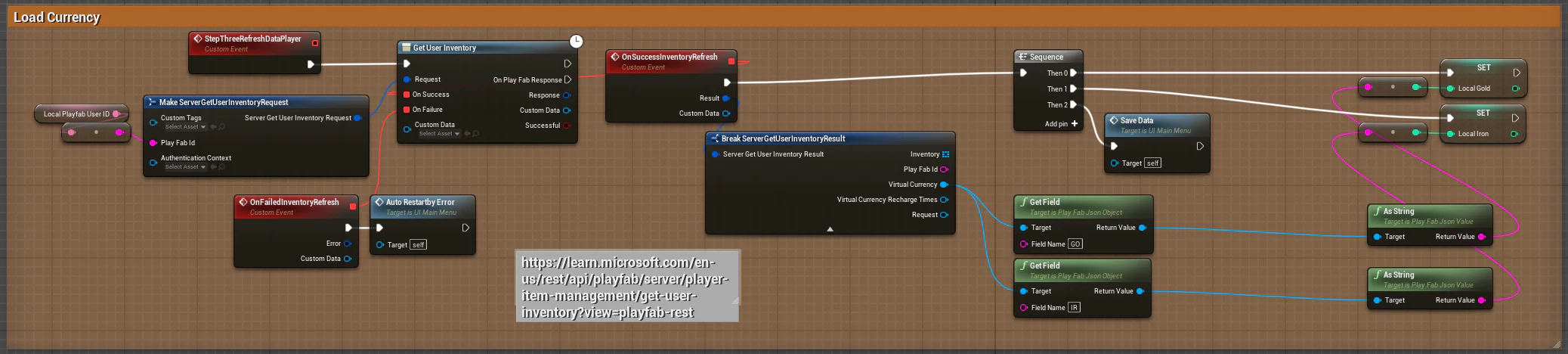
To obtain this information from the inventory, apply the same method as for other data, simply using the “Get User Inventory” function.
Player Item Management - Get User Inventory
Player Item Management - Update User Inventory Item Custom Data

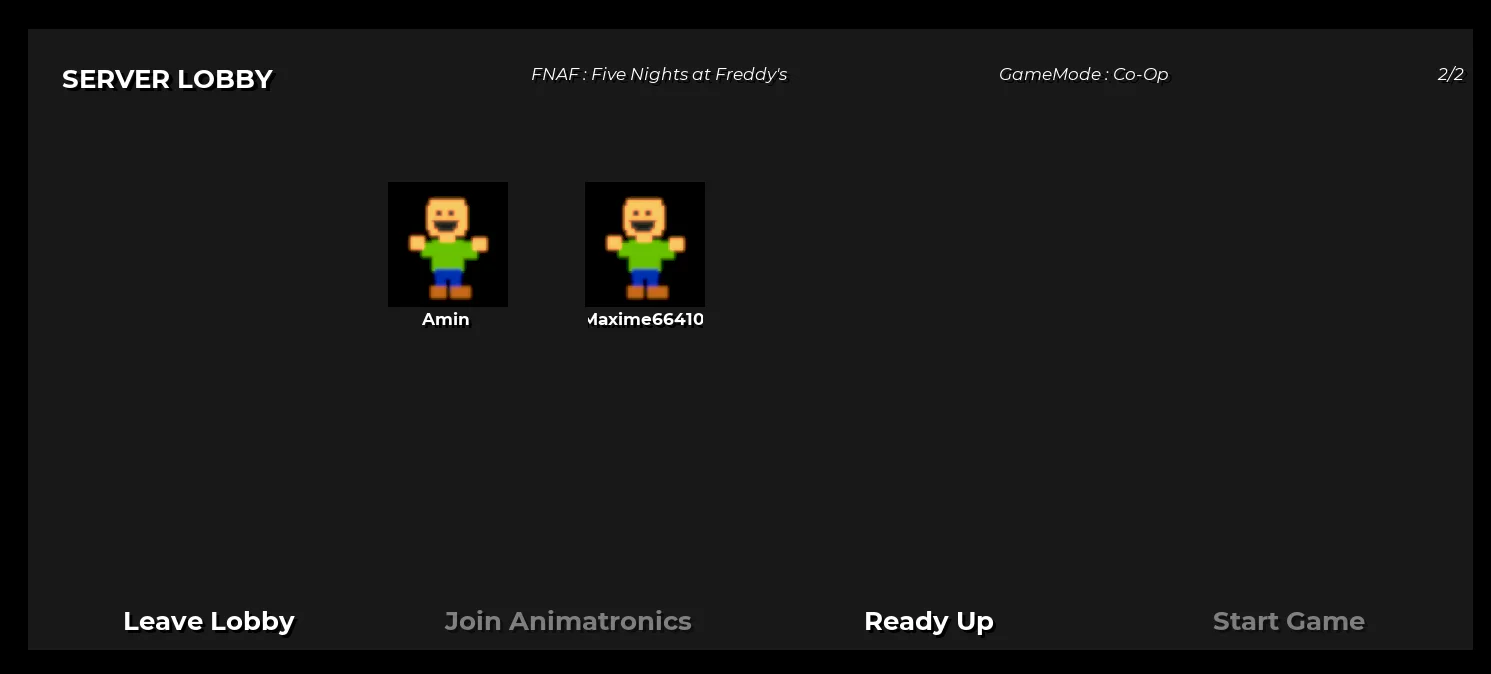
Also works to create a lobby system
Simply retrieve the player's nickname via the PlayerState.